Free Google Sheets timesheet template
Updated 2026-10-31 · Written by the Feestead team
A ready-to-use timesheet for Google Sheets: enter start time, end time and breaks, and it works out hours, overtime and pay. For teams, a second tab logs time by client and project, applies hourly rates and shows billable hours and utilization. Free, no email, works in Excel too.
=ROUND(MOD(E14-D14,1)*24-F14/60,2)| Day | Start | End | Break | Hours | Client / project | Billable |
|---|---|---|---|---|---|---|
| Mon | 9:00 | 17:30 | 30 | 8.00 | Northwind | Yes |
| Tue | 8:45 | 18:15 | 45 | 8.75 | Atlas Bank | Yes |
| Wed | 9:00 | 17:00 | 30 | 7.50 | Internal | No |
| Thu | 9:30 | 19:00 | 30 | 9.00 | Northwind | Yes |
| Fri | 9:00 | 16:00 | 60 | 6.00 | Atlas Bank | Yes |
| Sat | 10:00 | 14:00 | 0 | 4.00 | Northwind | Yes |
Get the template
Free. No email, no sign-up. Opens in Google Sheets and Excel. Five tabs: How to use, Weekly timesheet, Project log, Summary, Rates & lists.
⏱ Rather not type times by hand?
Feestead fills the timesheet for you. It keeps the columns you know (client, project, task, billable) and adds a start/stop timer, weekly timesheets, rates by person or project, budgets with overrun alerts, reports by client and person, and invoice lines for QuickBooks or Xero.
- Set up in 5 minutes: add clients and projects, invite the team
- 7 days free, no card required
- Then $9 per person/month billed yearly, or $11 monthly, with no fees per project, client or invoice
What's inside the template
Most free timesheet templates stop at a weekly grid. This one covers the three things people actually need a timesheet for: paying people, billing clients and seeing where the time went.
One person, one week. Start, end, break → hours, overtime, pay. Signature lines for approval.
For payrollThe whole team. Date, person, client, project, task, hours, billable, invoiced. Rates fill in automatically.
For client billingPick a date range: hours, billable amount and not-yet-invoiced money by client, plus utilization per person.
For decisionsPeople, hourly rates, weekly capacity and clients. Feeds the dropdowns, so nobody types a rate by hand.
Set up onceHow to open it in Google Sheets
- 1Upload to Google DriveNew›File upload Pick the .xlsx you downloaded.
- 2Open as a Google SheetDouble-click the file, then File›Save as Google Sheets Formulas and dropdowns carry over.
- 3Share with the teamShare›Add people›Editor Delete the sample rows first.
When a spreadsheet stops being enough
The template is great for one person or a small studio. Teams usually outgrow it when:
- more than two or three people log time, and entries go missing or land in the wrong project;
- you invoice several clients a month and copy hours into invoices by hand;
- you need to see a project going over budget before it happens, not at month-end;
- people want a timer instead of remembering hours at the end of the day.
How to fill in the weekly timesheet
- Set the header once. Employee name, the Monday the week starts, hourly rate, the overtime threshold (40 hours by default) and the overtime multiplier (1.5).
- Enter start and end times as times, not numbers. Type
9:00and17:30, with a colon.17.30is a number, not a time, and breaks the formula. - Enter the break in minutes.
30for a half-hour lunch. Unpaid breaks are subtracted automatically. - Pick the client or project and Billable Yes/No. Even on a payroll timesheet this is worth it: at the end of the month you see how much of the paid time was billable.
- Check the totals and sign. Total hours, regular and overtime hours, billable share and pay are at the bottom, with signature lines for the employee and the approver.
The formulas, explained
Google Sheets stores a time as a fraction of a day: 12:00 is 0.5, 6:00 is 0.25. That's why the hours formula multiplies by 24.
=ROUND(MOD(End − Start, 1) × 24 − Break / 60, 2)The other formulas are short:
| What | Formula in the template |
|---|---|
| Total hours | =SUM(G12:G18) |
| Regular hours | =MIN(Total, 40) |
| Overtime hours | =MAX(0, Total − 40) |
| Billable hours | =SUMIF(Billable, "Yes", Hours) |
| Pay | =Regular × Rate + Overtime × Rate × 1.5 |
| Rate in the project log | =VLOOKUP(Person, Rates, 2, FALSE) |
| Billable amount by client | =SUMIFS(Amount, Client, "Northwind", Date, ">="&From, Date, "<="&To) |
Overtime: how the template calculates it
Under the federal Fair Labor Standards Act, non-exempt employees must get at least 1.5 times their regular rate for hours worked over 40 in a workweek. The template follows that rule by default. Some states add daily overtime, California for example after 8 hours in a day, so check your state's rules and adjust the threshold if needed.
Quick time card calculator
Just need this week's total? Type the times below. It uses the same formula as the template and nothing is saved or sent anywhere.
| Day | Start | End | Break (min) | Hours |
|---|
Minutes to decimal hours
Timesheets and payroll use decimal hours, clocks use minutes. Mixing them up is the most common timesheet mistake: 7 hours 45 minutes is 7.75 hours, not 7.45.
=A1*24 turns a duration like 7:45 into 7.75.Billable hours and utilization (the Summary tab)
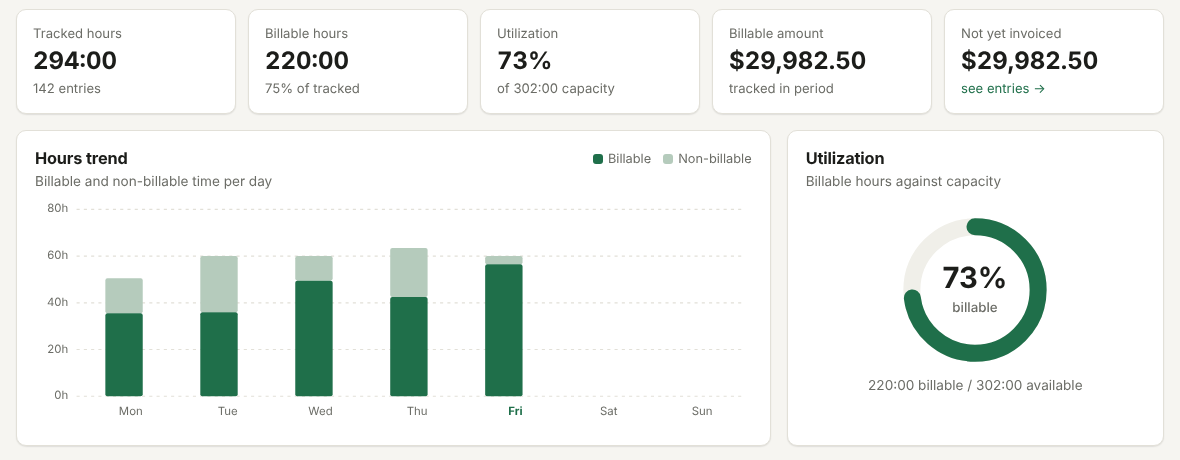
If you bill clients by the hour, the project log answers two questions every month: what can we invoice? and is everyone's time going to client work? The Summary tab shows billable amount and not-yet-invoiced money per client, and utilization per person: billable hours divided by the hours they're available.
7 mistakes that make spreadsheet timesheets wrong
- Filling it in on Friday from memory. Reconstructed hours almost always come out lower than what was worked. For billable work, that gap is revenue you never invoice.
- Typing 17.30 instead of 17:30. The first is a number, the second a time. One wrong cell silently zeroes a day.
- Writing 7.45 for 7 hours 45 minutes. It's 7.75. Use the conversion table above.
- Forgetting the break. An unrecorded 30-minute lunch every day is 2.5 hours a week of overpaid or overbilled time.
- Typing over a formula. Someone overwrites the Hours cell with a number, and the totals no longer match the times. Protect formula columns: Data›Protect sheets and ranges
- One file per person, emailed around. By month-end there are five versions and nobody knows which is final. Keep one shared file.
- Editing hours after they were invoiced. Mark entries as Invoiced and don't change them afterwards, or the invoice and the timesheet stop matching.
Google Sheets template vs. Feestead
| Google Sheets template | Feestead | |
|---|---|---|
| Price | Free | 7 days free, then $9/person/month billed yearly ($11 monthly) |
| Logging time | Type start and end times | Start/stop timer or weekly timesheet |
| Hours, overtime, pay | Formulas you maintain | Calculated for you |
| Rates | One per person | By person, task or project, applied automatically |
| Project budgets | No | Yes, with overrun alerts |
| Billing | Copy totals into invoices | Invoice lines CSV for QuickBooks or Xero; invoiced time locks |
| Works best for | 1–3 people, simple weeks | Agencies, consultants and studios billing clients |
Coming from Harvest? Feestead imports your full Harvest history in one click. See time tracking for agencies, for freelancers, or the Excel-first billable hours tracker.
FAQ
Is this timesheet template really free?
Yes. No email and no sign-up. Download it, change it, share it with your team.
How do I calculate hours worked in Google Sheets?
Subtract start from end and multiply by 24: =(End-Start)*24. To subtract a break and handle shifts past midnight, use =ROUND(MOD(End-Start,1)*24-Break/60,2).
How do I calculate overtime?
Regular hours are =MIN(Total,40), overtime is =MAX(0,Total-40), and overtime pay is overtime hours × rate × 1.5. Federal rules apply per workweek; some states also require daily overtime.
Can several people use one sheet?
Yes. Use the Project log tab for the whole team (one row per entry), or duplicate the Weekly timesheet tab per person. Share the file with edit access and protect the formula columns.
Does it work in Excel?
Yes. Download the .xlsx; every formula uses functions that work the same in Excel and Google Sheets.
How do I convert minutes to decimal hours?
Divide by 60: 15 minutes = 0.25, 30 = 0.5, 45 = 0.75. So 7 h 45 min = 7.75 hours.
Stop chasing timesheets
Your team tracks time with a timer, you get hours, billable amounts and invoice lines without touching a formula. 7 days free, no card.
Overtime rules summarized from the U.S. Department of Labor's overtime pay page, checked October 2026. Not legal advice.